Preamble
la Vitre has been designed to integrate into a wide variety of IT environments. The solution supports multiple deployment configurations in order to respect your infrastructure, your security policies and your internal needs (firewall, proxy, SSL inspection, corporate master image, flow sovereignty, etc.).
This document presents all the possibilities offered by la Vitre for hardware installation, network architecture, flow configuration, authentication, and access management. You will find the different options available with their technical implications, so you can choose the most suitable configuration for your context.
The sections below detail each aspect of deploying la Vitre in your infrastructure.
Hardware environment
la Vitre comes with a ready-to-use Mini-PC: up-to-date Windows 11 Pro, la Vitre application installed, camera and microphone drivers configured.
Using your own master on the provided Mini-PC Optional
You can deploy your own master (system image) on the Mini-PC. This allows you to apply your internal security and compliance policies: antivirus, GPO, network configuration, corporate certificates, etc.
You deploy your Windows 11 image on the Mini-PC, and the la Vitre application is then installed.
The camera and microphone drivers must be added to the Mini-PC to ensure proper operation of the audio/video flows.
| Driver | Description | Link |
|---|---|---|
Microphone driver |
Microphone driver | Download |
LOGI TUNE |
Logitech camera driver and software | Download |
Kiosk mode Optional
Kiosk mode is a native Windows 11 feature that locks the Mini-PC to a single application: la Vitre. The user cannot access the Windows desktop, the taskbar, settings or any other applications. This configuration ensures a secure, dedicated and tamper-proof device, ideal for shared or public spaces.
The la Vitre application displays in permanent full-screen mode and a dedicated parameter prevents it from being minimized, ensuring a locked experience on the application.
To simplify the deployment of Kiosk mode, we provide a reference PowerShell script that handles: creating a dedicated user account, configuring the firewall, installing la Vitre on the account, and setting up automatic Windows login.
| File | Description | Link |
|---|---|---|
kioskInstall.ps1 |
PowerShell script to install Kiosk mode | Download |
lavitreAssignedAccess.xml |
Assigned Access account configuration | Download |
Network architecture
The diagram below illustrates the network flows between la Vitre devices, the Companion Application and the la Vitre Cloud infrastructure.
Connection establishment
- WebSocket connection to the API
- Licensing / authentication
- Notifications (Guest join, Settings changed, Space change...)
- ICE Discovery (RFC 5245)
- Local IPs
- STUN/TURN call (if enabled): router IPs + relay IPs
- Endpoint exchange via the API
- Peer-to-peer connection in order:
- Local IPs
- Router IPs
- Relay (TURN)
Network flows
always initiated from the LAN
| HTTPS / WebSocket | TCP 443 |
| STUN / TURN | TCP/UDP 443 |
| Video / Audio / Data | E2E encrypted WebRTC - dynamic UDP/TCP |
Network diagnostic page
Data encryption
All exchanges between the different services and devices are encrypted, ensuring confidentiality and integrity of data.
End-to-end encryption
Audio/video flows are encrypted via SRTP + DTLS-SRTP. Keys are negotiated per session directly between the Vitres and are never persisted. Only the destination Vitre (for example V1) can decrypt and read the flow emitted by another Vitre (for example V2) - neither the relay servers, the routers, nor the la Vitre infrastructure can access the content.
Outbound flows only
All network connections are initiated from the LAN to the outside (la Vitre Cloud). No inbound flow is ever initiated from the Internet to your network. This means no inbound port needs to be opened on your firewall: only outbound rules need to be configured. This design ensures a minimal attack surface on the infrastructure side.
Ciphers used for the APIs
- TLS_AES_256_GCM_SHA384 (TLS 1.3 only)
- TLS_CHACHA20_POLY1305_SHA256 (TLS 1.3 only)
- TLS_ECDHE_ECDSA_WITH_AES_256_GCM_SHA384 (TLS 1.2)
- TLS_ECDHE_ECDSA_WITH_CHACHA20_POLY1305_SHA256 (TLS 1.2)
- Protocols: TLS 1.2 and TLS 1.3 only. TLS 1.0 / 1.1 disabled.
- TLS 1.3 key exchange: X25519MLKEM768 (post-quantum hybrid).
Ciphers used for WebRTC
- TLS_ECDHE_ECDSA_WITH_AES_128_GCM_SHA256
Network configuration
What is your network configuration?
Identify the elements present in your infrastructure to determine the required openings.
Open network
No proxy, no application filtering, direct Internet access.
Firewall with filtering
Only certain outbound ports are allowed.
HTTP / HTTPS Proxy
Web traffic via proxy (Zscaler, Squid, BlueCoat...).
SSL Inspection / UDP blocked
SSL decryption (MITM), UDP blocking, VDI...
Application flows (HTTPS + WebSocket)
These flows are essential for the operation of la Vitre and the Companion Application. They all go through port 443/TCP.
| Flow | Domains | Port | Protocol | Direction |
|---|---|---|---|---|
| Main APIs | lavit.re, *.lavit.re |
443 |
HTTPS / TLS 1.3 | Outbound |
| WebSocket (real-time) | lavit.re, *.lavit.re |
443 |
WSS / TLS 1.3 | Outbound |
| Companion Application | *.lavitre.me, lavitre.me |
443 |
HTTPS / TLS 1.3 | Outbound |
| Guest space | *.lavitre.space, lavitre.space |
443 |
HTTPS / TLS 1.3 | Outbound |
| Static content / updates | storage.lavit.re |
443 |
HTTPS / TLS 1.3 | Outbound |
| Embedded applications | *.extensions.lavit.re, *.apps.lavit.re |
443 |
HTTPS / TLS 1.3 | Outbound |
| Analytics | insights.lavit.re |
443 |
HTTPS / TLS 1.3 | Outbound |
Audio / video / data flows (WebRTC)
In addition to the application flows. Media flows use WebRTC with end-to-end encryption (SRTP + DTLS).
| Flow | Domains | Port | Protocol | Direction |
|---|---|---|---|---|
| STUN (NAT discovery) | stun.lavit.re |
443 |
TCP & UDP | Outbound |
| TURN (media relay) | *.relay.lavit.re |
443 |
TCP & UDP | Outbound |
End-to-end encryption: Audio/video flows are encrypted via SRTP + DTLS-SRTP. Keys are negotiated per session directly between the Vitres and are never persisted. Only the destination Vitre (for example V1) can decrypt and read the flow emitted by another Vitre (for example V2) - neither the relay servers, the routers, nor the la Vitre infrastructure can access the content.
QoS (Quality of Service): to guarantee a smooth audio/video experience, it is recommended to apply QoS best practices on your network. WebRTC packets are marked with standard DSCP values (EF / 46 for audio, AF41 / 34 for video, AF11 / 10 for data). Configure your network equipment (switches, routers, firewall) to prioritize these real-time flows over standard traffic, prefer UDP over TCP fallback, and monitor latency (< 150 ms), jitter (< 30 ms) and packet loss (< 1%) on the relevant paths.
Proxy
If your network includes a proxy, the following action is required.
| Constraint | Required configuration |
|---|---|
| HTTP/HTTPS Proxy | Whitelist *.lavit.re, *.lavitre.me, *.lavitre.space. Support WebSocket upgrade (HTTP 101). |
la Vitre Cloud relay server
By default, all Vitres use the relay servers hosted by la Vitre.
A TURN relay server is used by la Vitre to route encrypted WebRTC flows (audio, video, data) between two Vitres when the direct (peer-to-peer) connection cannot be established - for example due to symmetric NAT, restrictive firewalls or complex inter-network routes.
Internal relay server Optional
You can choose to deploy your own TURN relay server within your infrastructure to control the routing of encrypted flows.
To facilitate this setup, we document below the entire procedure: the presentation of coturn (the recommended open source TURN implementation), an example of a ready-to-use Docker deployment, the testing procedure for the server, and finally the configuration on the la Vitre side to switch the WebRTC flows to your internal server.
Presentation of coturn
Coturn is an open source relay server (TURN) that routes encrypted traffic between two Vitres when the direct (P2P) connection fails. It is the reference implementation of the TURN protocol.
Docker deployment:
mkdir coturn && chown -R 65534:65534 coturn

# coturn.conf
db=/var/lib/coturn/turndb
lt-cred-mech
fingerprint
realm=mydomain.com

# Start
docker run -d --name coturn --network host --restart always \
  -e DETECT_EXTERNAL_IP=yes -e DETECT_RELAY_IP=yes \
  -v $(pwd)/coturn:/var/lib/coturn \
  coturn/coturn:4.6.2 -c /var/lib/coturn/coturn.conf

# Add a user
docker exec coturn turnadmin -b /var/lib/coturn/turndb \
  -a -u myuser -r mydomain.com -p pass1234
mydomain.com with your own domain name. For logs: add --log-file=stdout then docker logs coturn.
Test: visit Trickle ICE - URI: turn:<IP_or_FQDN>:3478
Configure in la Vitre: admin.lavitre.me → Advanced settings → WebRTC / ICE Servers → uncheck "use la Vitre shared servers" → add your server.
| Parameter | Description |
|---|---|
use la Vitre shared servers |
Enables la Vitre shared TURN servers. Uncheck to use your own servers. |
iceTransport |
Transport mode: all (default), relay (forces TURN) or none. |
Local ICE Servers |
Servers used between this device and all participants. |
Shared ICE Servers |
Servers transmitted automatically to all participants (guests, remote Vitres). |
Access management and authentication
la Vitre is authenticated as a Device with the la Vitre Cloud infrastructure.
la Vitre does not store any user data.
la Vitre Cloud does not manage any user accounts (login / password).
A user does not authenticate on la Vitre.
To share content on la Vitre (Images, PDF, Videos...), the user uses the Companion Application on which they can be authenticated according to the authentication modes defined on la Vitre.
SSO (Single Sign-On)
If you use SSO, these domains must also be accessible from the network.
| SSO Provider | Domains to allow | Port | Protocol |
|---|---|---|---|
| Google Workspace | accounts.google.com, *.googleapis.com |
443 |
HTTPS (OAuth 2.0) |
| Microsoft / Azure AD | login.microsoftonline.com, *.microsoft.com |
443 |
HTTPS (OAuth 2.0) |
| Apple ID | appleid.apple.com, *.apple.com |
443 |
HTTPS (OAuth 2.0) |
| Magic Link (email) | No additional domain | 443 |
HTTPS |
Microsoft SSO configuration
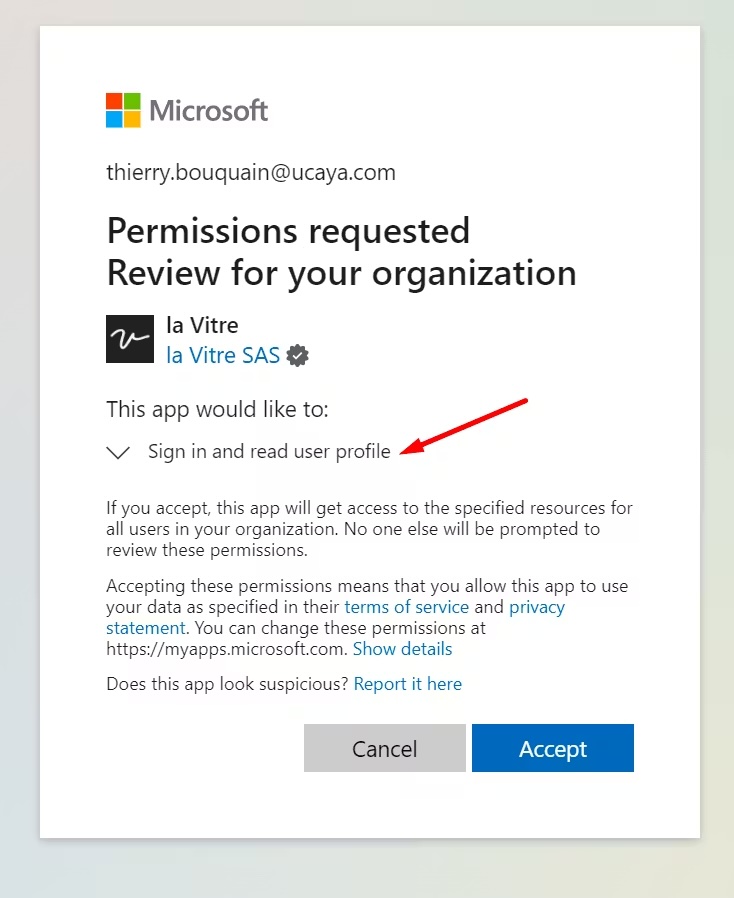
To authorize Microsoft SSO, an administrator with rights on your Active Directory (AD) must click the following URL:
https://login.microsoftonline.com/common/adminconsent?client_id=8925c51f-398a-4283-a02a-9f5df1f71cba&redirect_uri=https://lavitre.me
The administrator is then redirected to the Microsoft consent page, where they can review the permissions requested by la Vitre and approve authorization for the organization:
Identity providers
la Vitre offers several ways to authenticate users on your team to use the Companion Application or the administration portal. You can use one of the preconfigured authentication providers (Google, Microsoft, Apple, Magic Link) or add a custom OIDC-compatible provider from the administration portal.
Custom identity provider
Once configured, when a user enters their email on the authentication page, the custom identity providers will be available to them.
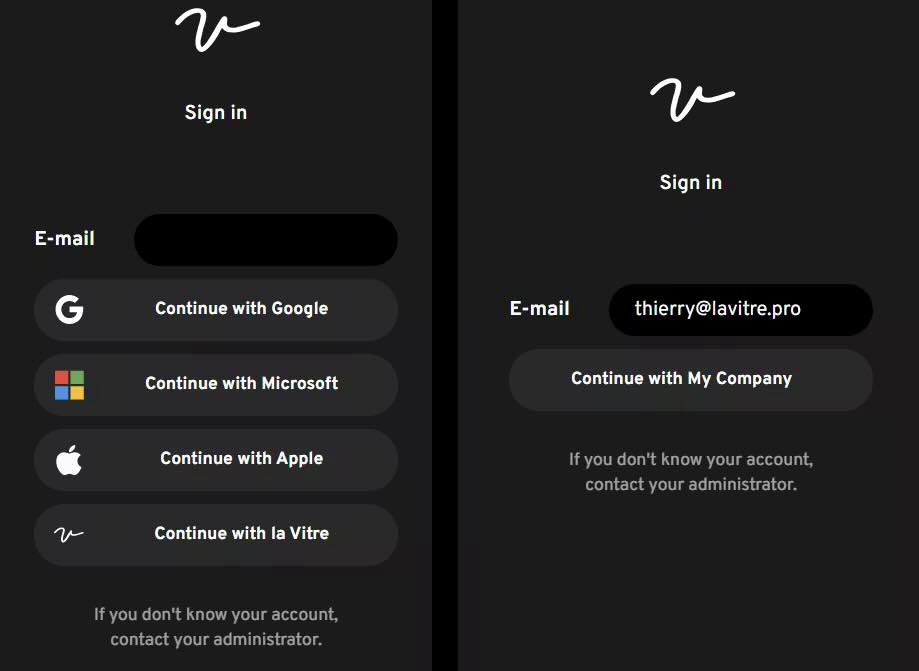
la Vitre supports OpenID providers in implicit flow mode. The redirect URL must be set to the following value:
https://svc.lavit.re/oauth/complete
Then fill in the configuration with the values from your OpenID application. The sections below contain configuration examples - remember to replace the example values with your own.
Microsoft Entra Application configuration example
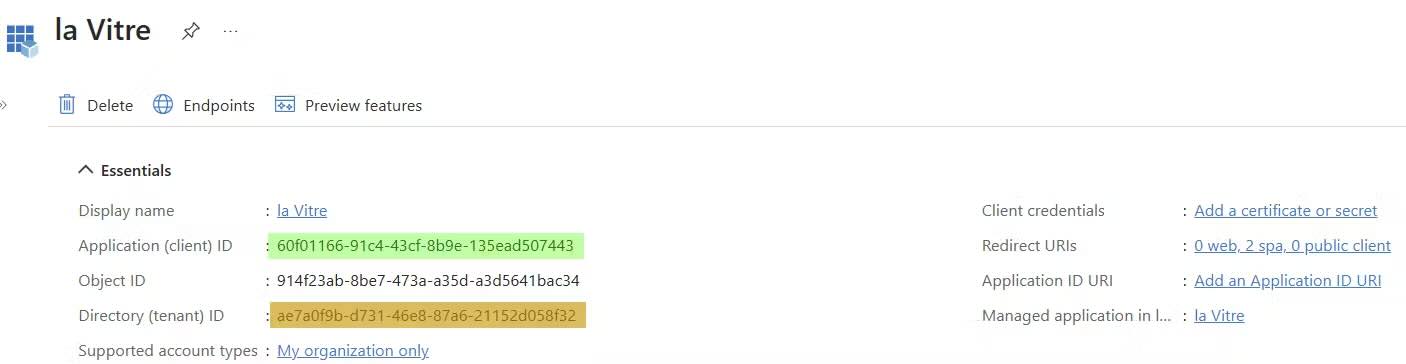
With the following values from the Azure portal:
| Field | Value |
|---|---|
| Name | Display name shown on the authentication page |
| Client Id | 60f01166-91c4-43cf-8b9e-135ead507443 |
| Issuer | (empty) |
| Discovery URL | https://login.microsoftonline.com/ae7a0f9b-d731-46e8-87a6-21152d058f32/v2.0/.well-known/openid-configuration?appid=60f01166-91c4-43cf-8b9e-135ead507443 |
Okta configuration example
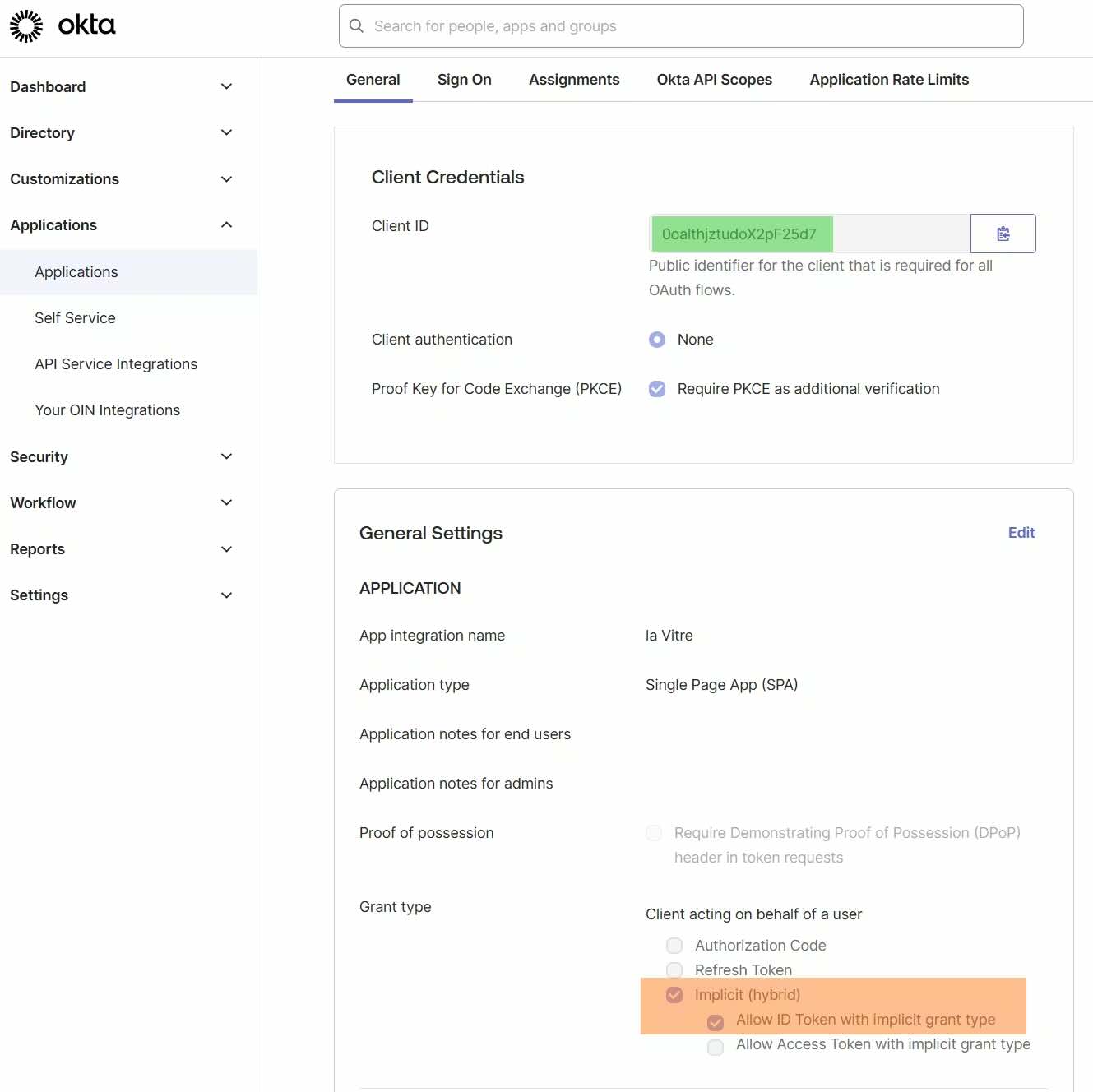
With the following values from the Okta portal:
| Field | Value |
|---|---|
| Name | Display name shown on the authentication page |
| Client Id | 0oalthjztudoX2pF25d7 |
| Issuer | (empty) |
| Discovery URL | https://your_okta_domain.com |
Connection security levels for la Vitre
Each Vitre can be configured with different security levels that define how the Companion Application can connect to it. These parameters are accessible from the administration portal in the Vitre: Security parameters section.
Authentication mode:
| Mode | Description |
|---|---|
Open |
No authentication required. A unique code is displayed on la Vitre and refreshed every minute to secure access. |
User Account |
Authentication required. The user must log in with an account registered in the administration portal (via SSO or Magic Link). A unique code is displayed on la Vitre and refreshed every minute to secure access. |
Cross-network remote access:
| Option | Description |
|---|---|
| Cross network remote access for anonymous users | Allows anonymous users to connect to la Vitre from a different network (outside the local LAN). |
| Cross network remote access for authenticated users | Allows authenticated users (SSO/Magic Link account) to connect to la Vitre from a different network (outside the local LAN). |
User Account mode and disable remote access for anonymous users. For open spaces (reception, public halls), the Open mode allows a frictionless experience.
Apps
Some applications integrated into la Vitre require access to third-party services. Allow the corresponding domains according to the enabled applications.
| Application | Domains to allow | Port | Protocol |
|---|---|---|---|
| Translation | *.api.cognitive.microsoft.com, *.cognitiveservices.azure.com, *.speech.microsoft.com |
443 |
HTTPS |
| Figma | *.figma.com, *.figma.site, figma.app |
443 |
HTTPS |
| YouTube | *.youtube.com, *.youtube-nocookie.com, *.googlevideo.com, *.ytimg.com, *.gstatic.com |
443 |
HTTPS |
| Miro | *.miro.com, *.mirostatic.com, *.realtimeboard.com |
443 |
HTTPS + WSS |
| Yellow | *.getyellow.io |
443 |
HTTPS |
Summary table of flows
| Flow | Domain | Port(s) | Protocol | Encryption | Status |
|---|---|---|---|---|---|
| Main APIs | lavit.re, *.lavit.re |
443 |
TCP (HTTPS) | TLS 1.3 / AES-256-GCM | Required |
| WebSocket (real-time) | sr.lavit.re |
443 |
TCP (WSS) | TLS 1.3 | Required |
| Companion / Guests / Administration | lavitre.me, *.lavitre.me, *.lavitre.space |
443 |
TCP (HTTPS) | TLS 1.3 | Required |
| Apps & Content | storage.lavit.re, *.extensions.lavit.re, *.apps.lavit.re |
443 |
TCP (HTTPS) | TLS 1.3 | Required |
| STUN / TURN | stun.lavit.re, turn.lavit.re, *.relay.lavit.re |
443 |
TCP & UDP | DTLS / SRTP (E2E) | Required |
| Analytics | insights.lavit.re |
443 |
TCP (HTTPS) | TLS 1.3 | Required |
| SSO (by provider) | See SSO section | 443 |
TCP (HTTPS) | TLS 1.3 | Required |
Deployment checklist
- Whitelist la Vitre domains (see Summary table of flows)
- Allow the chosen SSO domain (Google, Microsoft or Apple) on port
443/TCP - Test access from
https://lavitre.me/diag
Administration portal
The administration portal allows you to manage all your Vitres from a centralized web interface. You can configure the advanced settings of each Vitre, monitor their status in real time, and manage the users of your company.
Prerequisites and administrator role
To access the administration portal and the advanced settings, you must be an administrator of your company.
- During setup, our teams register your name and email address.
- You are then autonomous to manage your Vitres: color, icon display, restart a Vitre, add a peripheral, etc.
- We recommend at least two administrators per company. A dedicated training is provided by the Customer Success team.
- An administrator has access to all Vitres in their group or company.
Connecting to the platform
- Open your browser and go to admin.lavitre.me
- Choose your SSO provider or click on "Continue with la Vitre": you will receive a connection link by email, click to validate access
Available menus
After connecting, you arrive on the dashboard with the list of Vitres of your company.
| Menu | Description |
|---|---|
| Vitres | List and status of your Vitres |
| Users | Rights management |
| Usage | Usage statistics (presence, knock-knock, drawings, etc.) |